
Install and activate Elite Post Purchase
Start your free trial, publish a flow and select the app as your post-purchase page, so buyers start seeing your offers.
Last updated
Elite Post Purchase shows buyers an offer on Shopify's post-purchase page, right after they pay and before the order confirmation. To install and activate it, you need three things in place: an active plan, a published flow, and the app selected as your store's post-purchase page. Until all three are done, buyers see no offer.
The app's Home page tracks these steps in its Get started card. Each step ticks itself off once it's done, even when you finish it in another tab and come back.
Open the app
After you install Elite Post Purchase, open it from Apps in your Shopify admin. The app has seven pages: Home, Flows & modules, EliteAI™ & discounts, Analytics, Languages, Settings & integrations and Plan. For the EliteAI™ page, see What EliteAI™ is and how it picks products.
Start your free trial
Open the Plan page
In the Get started card, open Start your trial and click Subscribe. You can also open Plan from the app's menu.
Start the trial
On the Plan page, choose Essentials or Pro and click Start free trial on its card. The badge beside the headline shows how many trial days you have.
Approve it in Shopify
Shopify shows the plan's terms and asks you to approve it. Charges appear on your Shopify bill, with your other apps.
The trial is 14 days, once per store. If you reinstall the app later, you get whatever is left of it. See Plans and pricing for how billing works.
Build your first flow
A flow is the offer a buyer sees after paying, plus the follow-up offers after they accept or decline it. In the Get started card, open Build your first flow and click Create your first flow. Create your first flow walks you through it.
Select Elite Post Purchase in checkout settings
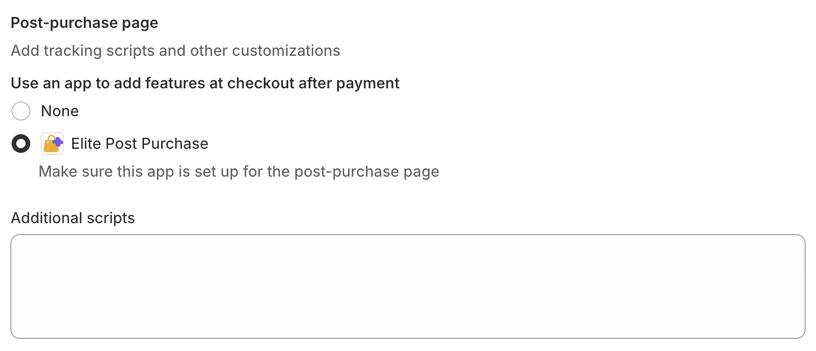
Shopify shows the post-purchase page of one app at a time, and you choose that app in your checkout settings.
Open checkout settings
In your Shopify admin, go to SettingsCheckout. From the app, you can also open Turn on Elite Post Purchase in checkout in the Get started card, click Activate, then Open checkout settings.
Find the post-purchase section
Scroll down to Post-purchase page.
Choose the app
Choose Elite Post Purchase.
Save
Click Save.
Turn on offers on the thank-you page
The fourth step in the Get started card adds thank-you page offers, which reach buyers Shopify gives no post-purchase page. Open Turn on offers on the Thank-you page and click Open Thank-you page editor. In the editor, under Main, click Add block, pick Thank-you page upsells (Elite Post Purchase), then click Save. The step ticks itself off when you come back. See Show an offer on the thank-you page.
Check that it works
Place a test order in your store and pay. If your flow's conditions match the order, the offer appears after payment, before the order confirmation. If it doesn't, work through Why your offer isn't showing.
Still stuck?
Chat with us and we'll help you get your offer live. Or email contact@elitecart.app.